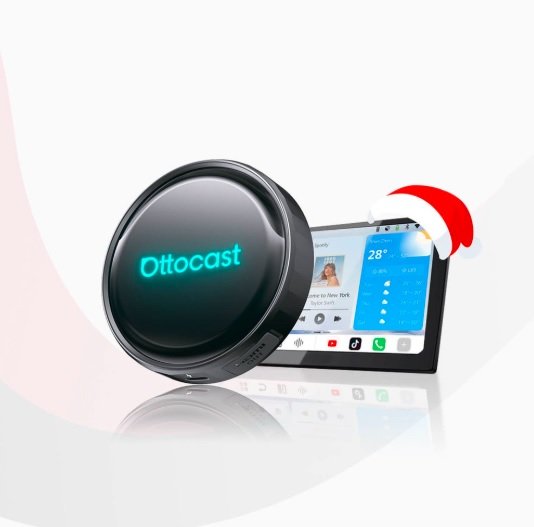
Tired of messy cables? You can easily turn wired CarPlay into wireless using a plug-and-play adapter like the Ottocast U2-AIR Pro. It connects via Bluetooth and Wi-Fi for an automatic, clutter-free driving experience without replacing your head unit.
Why Switch to Wireless CarPlay?
Factory wired CarPlay is great, but cables are inconvenient. They clutter your dashboard and require constant plugging and unplugging every time you enter the car. Upgrading to a wireless setup offers significant benefits:
· Convenience: Your phone connects automatically when you start the engine, allowing you to keep it in your pocket or bag.
· Safety: A clutter-free environment helps you keep both hands on the wheel.
· Longevity: Reducing physical connections prevents wear and tear on your phone’s charging port and the car’s USB interface.
3 Practical Paths to Go Wireless
Not all adapters are the same. Depending on your needs—whether you just want navigation or a full multimedia center—there are three distinct paths to upgrade your vehicle.
Path 1: The Speed Upgrade (Simple Adapters)
This is the simplest path for drivers who want to strip away cables but keep the original CarPlay interface.
How it works: Plug the adapter into your car’s USB port. It uses Bluetooth and Wi-Fi to bridge your iPhone to the car.
Best For: Daily commuters who rely on Maps and Music.
Top Pick: The Ottocast U2-AIR Pro is designed for speed. It offers a stable connection and fast auto-reconnection, ensuring you are ready to go the moment you start the car10. For a compact option, the Mini Wireless Adapter offers a minimal footprint with the same “plug-and-play” efficiency.
Path 2: The Entertainment Hub (Multimedia Boxes)
If you want more than just maps—such as video streaming for passengers—this path is for you.
How it works: These adapters convert wired CarPlay to wireless but also include built-in systems to mirror screens or play videos.
Best For: Families and road trippers.
Top Pick: The Play2Video Pro. It allows you to stream content (like YouTube or Netflix) while still enabling wireless CarPlay functions, turning your dashboard into a multimedia hub.
Path 3: The Ultimate AI Experience (AI Boxes)
This is for tech enthusiasts who want a full Android system in their car.
How it works: An AI Box replaces the standard interface with a powerful OS that supports app downloads, offline maps, and more.
Best For: Users who want maximum functionality and customization.
Top Pick: The OttoAibox P3. It upgrades your car with a new interface style and smart functions, going far beyond simple phone mirroring.
Quick Comparison: Which Ottocast Adapter Fits You?
| Feature | Path 1: U2-AIR Pro | Path 2: Play2Video Pro | Path 3: OttoAibox P3 |
| Primary Function | Wireless CarPlay/Android Auto | Multimedia Streaming + Wireless AA/CP | Full AI Android System |
| Installation | Plug & Play | Plug & Play | Plug & Play (Advanced) 20 |
| Video Streaming | No | Yes (Built-in apps/Mirroring) | Yes (Full App Store) |
| Ideal User | Commuters focused on speed | Families & Video lovers | Tech enthusiasts |
How to Install Your Wireless Adapter
Installation is designed to be effortless.
Plug In: Connect your Ottocast adapter to the USB/USB-C port that supports wired CarPlay.
Pair: Enable Bluetooth and Wi-Fi on your iPhone and select the adapter in your Bluetooth list.
Play: Accept the pairing prompt. Your phone will now auto-reconnect every time you drive.
Note: Ensure your car’s firmware is up to date. Check the Official Apple CarPlay Guide to confirm your vehicle supports wired CarPlay, as this is required for these adapters to work.
Wired vs. Wireless: Pros and Trade-Offs
Before buying, it is important to understand the differences.
| Feature | Wired Connection | Wireless Adapter (Ottocast) |
| Setup | Plug cable every time | One-time setup, auto-connect |
| Charging | Charges while connected | Requires separate charger (or MagSafe) |
| Dashboard | Cluttered with wires | Clean and neat |
| Convenience | Low | High (Hands-free) |
While wireless adds massive convenience, ensure you check your car’s USB power. Weak ports can cause disconnection, so ensure the port provides constant power.
Essential Tips for a Smooth Connection
To ensure the best performance from your Ottocast device:
Update Firmware: Use FOTA (Firmware Over The Air) to fix bugs and improve compatibility with new iOS updates.
Check Wi-Fi Bands: Ensure the adapter uses 5GHz Wi-Fi for low latency and faster data transfer, which reduces lag in maps and audio.
Power Supply: If you experience dropouts, check if your car’s USB port supplies stable power. Some older head units may need a power booster cable.
FAQ
Q: Will these adapters work if my car doesn’t have CarPlay at all?
A: No. These adapters are designed to convert wired CarPlay to wireless. Your vehicle must have a factory-installed wired CarPlay system.
Q: Is there a delay with wireless CarPlay?
A: Wireless connections can have slightly more latency than wired, but high-quality adapters like the U2-AIR Pro use 5GHz Wi-Fi to minimize lag for a near-instant response.
Q: How do I update the adapter?
A: Most Ottocast adapters support FOTA (Firmware Over The Air). You can update them easily through your phone’s browser while connected to the adapter’s Wi-Fi.
Q: Does using a wireless adapter drain my phone battery?
A: Yes, because Wi-Fi and Bluetooth are active. For long trips, we recommend using a wireless charger or a separate charging cable.